Guide · Updated 1 November 2026
How to multibox OSRS
Multiboxing means playing several Old School RuneScape accounts at once. This guide covers the ways to do it, then walks through OSRS Multibox from install to a full team: adding accounts, starting them, leading them as the master, and the dashboard that watches over them.
- Ways to multibox
- Install
- Add accounts
- Start your team
- Lead as the master
- The dashboard
- Auto eat
- How many accounts?
- Troubleshooting
Ways to multibox OSRS
By hand. Open a client per account and switch between the windows, playing each one yourself. Jagex allows it, and RuneLite profiles keep each account's settings apart. It works for two or three accounts doing slow things, and stops working the moment two of them need you at once.
Input broadcasting. Tools built for other MMOs copy your mouse and keyboard to every window. In OSRS each window's camera, zoom and position differ, so the same screen position lands on something different in each, and the accounts drift apart within a few clicks.
A multibox client. OSRS Multibox copies what you do in the game, not where you click on screen. One account is the master; when it walks, attacks, talks to an NPC or uses an item, every other account does the same, to the same target. That's what the rest of this guide covers. It isn't a Jagex-approved client, so read what the rules say first.
Install OSRS Multibox
- Buy a license. Your login and a download link arrive by email within a minute or two. You can download again any time from your account page.
- Open OSBox. It runs on Windows, macOS and Linux. Opening it needs Java, any version; on first start it sets up the Java it runs on, then adds OSRS Multibox to your Start menu or Spotlight.
- Sign in with the email and password from your email. OSBox downloads the newest client, opens your dashboard in the browser and waits in the background. Leave it running: it's what starts your clients.
Use the dashboard in Chrome, Edge or Firefox. Safari can't reach OSBox on your computer. Bought it already? The setup page goes through this for your computer.
Add your accounts
In the dashboard, open Accounts. Your accounts are kept by OSBox on your own computer, not on our servers.
- Add account with its login and password, or Import list to add many at once.
- Add Jagex account to sign in to one and add its characters. Follow the steps in the drawer: after signing in, copy the whole address from that tab and paste it back.
- Order matters. Clients start in list order, and the first one up is your master; move accounts with the arrows beside their numbers.
- Proxies are optional: Add proxy for each SOCKS5 proxy, Test it, and pick one for an account when you add or edit it.
- Start OSBox with my computer keeps it waiting in the background, so Start on the dashboard always works straight away.
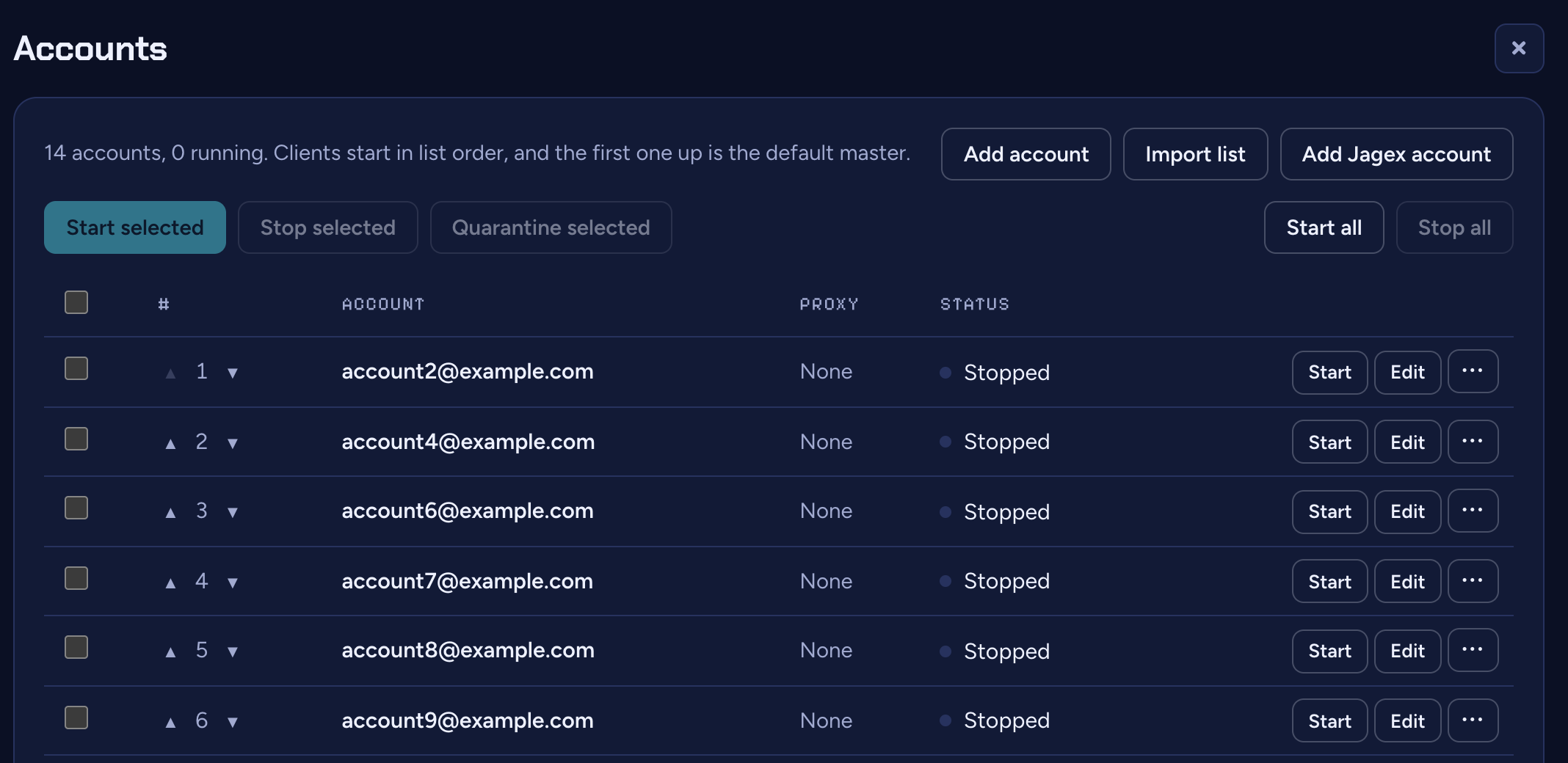
An account the game turns away for good, like one with a wrong password, moves to Quarantine and won't start until you fix it. Saving a new password puts it back in the list.
Start your team
Press Start at the top of the dashboard's sidebar. It opens OSBox if it isn't running, starts a client for every account and switches echo on. Each client logs in by itself, and the first one in is your master. To start only some accounts, use the Start button beside each one under Not running.
The same button stops and starts echo while you play. Running, your other accounts follow the master; stopped, they stand still, which is handy for a moment of hands-on play on one account. A license runs 10 accounts at once; the Extend add-ons raise that to 30 or 100.
Lead as the master
You play the master as you would any account. The others copy it: walking, attacking, talking to NPCs, using objects, opening the same side tab, and following its camera. On the other clients a crosshair shows where the master's mouse is.
Clicking NPCs, players and objects
When you click something, each account finds the same NPC, player or object in its own game and clicks it, wherever its camera is. A whole team attacks one boss or chops one tree.
Items
Using an item works on each account's own copy, wherever it sits in that account's inventory, bank or Grand Exchange. An account without the item skips that action, so give the team the same gear and supplies for what you're doing.
Formations, and bringing accounts back
Walking keeps the team in a Formation around the tile you click: a dot (everyone on one tile), a grid from 2×2 to 5×5, a line along either axis, a Ring around the tile, Anti-barrage, spread so one ice barrage can't catch you all, or Custom, where you draw the spots yourself and save your layouts. If accounts drift apart, click a tile: each one heads for its spot around it, from wherever it is.
Chat
What you type and send in chat on the master is sent from every account too.
Changing the master
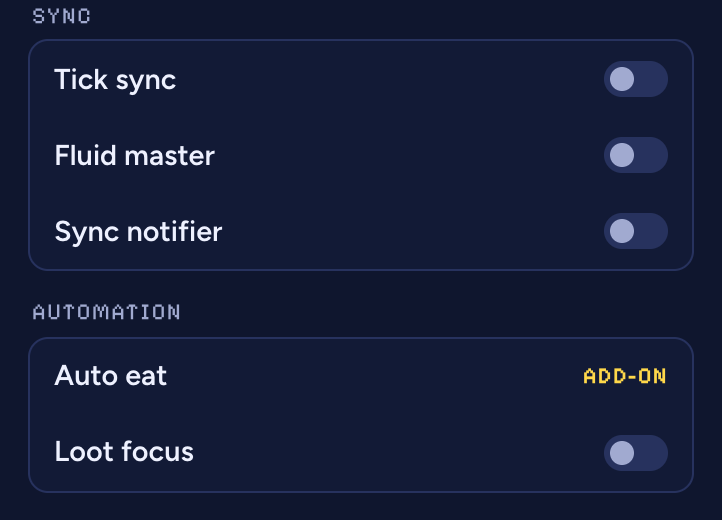
Turn on Fluid master under Sync in the dashboard and whichever client your mouse goes into becomes the master. Move to another window and carry on playing from there; nothing restarts. With it off, the first client to log in stays the master.
Tick sync
With Tick sync on, everyone acts on the same game tick: a click you make late in a tick waits for the next one, so no account is a tick behind.
The dashboard
Everything about the team, from your browser, while you play.
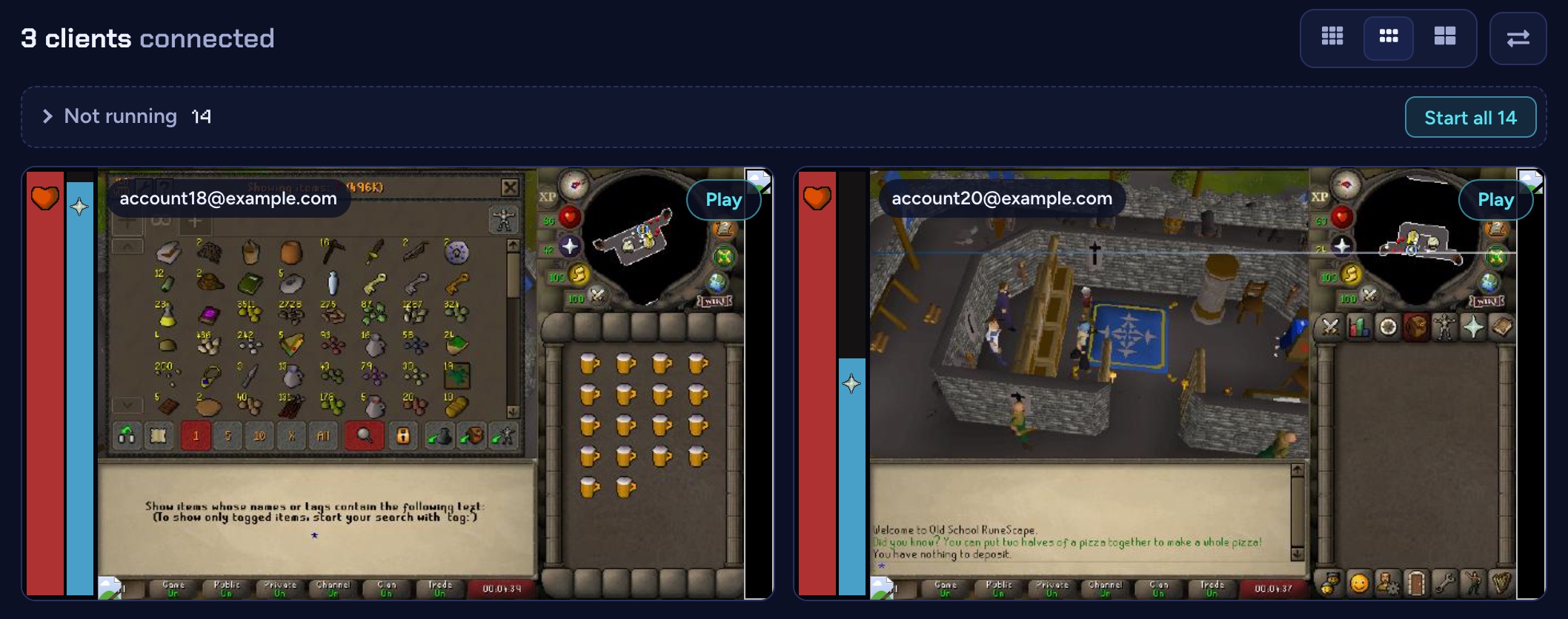
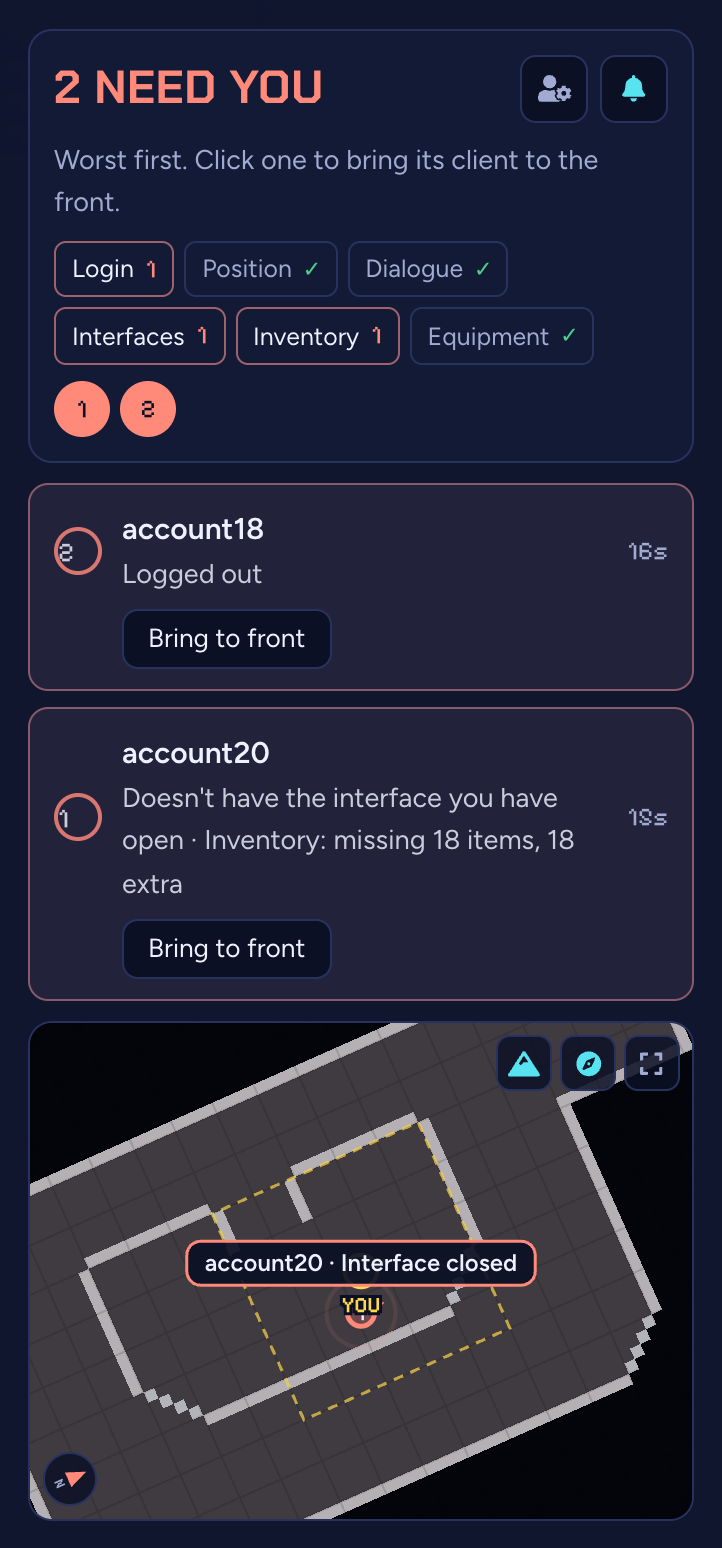
- Team panel. One line says whether your team is in step with the master, with a dot per account and a map of the team around it: green rings in step, red once one has been out of step for a moment. It lists only the accounts that need you; click one to bring its client to the front. A chime can sound when an account goes red.
- Client tiles. A tile per running client, with its picture, hitpoints and prayer. Press Play on one to play that client full size in the browser, even with its window minimised. Switch clients with Shift + ← → (you can change the key in the player's settings).
- Worlds. Spread puts each account on its own world, Same puts them all on one, and the default world can be F2P or Members. Switch worlds moves accounts already in game.
- Sync alerts. Have the dashboard watch for an account that differs from the master in its inventory, equipment, open interfaces, NPC chat or position, with a position tolerance and a delay before it alerts. With Block input while out of sync on, the master's clicks are held back until the team is in step again; hold Tab to play through it.
- Shared loot. Set a minimum loot value and every account's drops worth that much show on your master, tagged with the account's name. Take one and that account runs over and picks it up.
Auto eat (add-on)
With the Auto eat add-on, turn on Auto eat under Automation and every account eats for itself. Set Eat below HP, Combo eat below HP for the big hits (food, a Saradomin brew and a karambwan together), and Restore prayer below for prayer potions and super restores.
How many accounts can I run?
It comes down to memory. Each client is capped at 512 MB of Java memory, plus what Java itself needs. To keep the rest light, clients nobody is watching skip drawing the 3D game world while their game carries on as normal, so your other accounts cost far less than the one you're looking at.
- Start with two or three and add more once your setup works.
- Minimise the master when you're not watching it, and use Play on the dashboard instead.
- Members' content needs membership on every account you take there.
Troubleshooting
- The dashboard says “OSBox isn't running”
- Open OSRS Multibox from the Start menu or Spotlight, or the OSBox.jar you downloaded; the dashboard connects by itself. Already open? Use Chrome, Edge or Firefox: Safari can't reach it.
- “The launcher is still downloading the client”
- OSBox is fetching the newest client. Start all accounts works once it's done.
- My accounts stand still
- Echo is off. Turn on Echo & auto login at the top of the sidebar.
- Clicks on the master do nothing
- Block input while out of sync is on and an account is out of step. Check the team panel for the red one, or hold Tab to play through it.
- One account didn't copy an action
- It probably doesn't have the item, or has a different interface open. Sync alerts tell you which account and what differs.
- An account is in Quarantine
- The game refused its login, usually for a wrong password. Edit it and save the right password.
- “Account limit reached”
- Your license's limit of clients is already connected. The new client works on its own but won't follow the master. Close another client, or extend your license from your account.
- “This client is out of date”
- Close it and start OSBox again; it downloads the newest client.
- “This client is newer than the OSRS Multibox server”
- An update is on its way out. Try again in a few minutes.
- “Its proxy … failed to connect”
- Shown on the account in the Accounts drawer: its proxy didn't answer, so the client closed rather than play from your own address. Test the proxy under Accounts › Proxies, and fix or change it.
- “Couldn't reach the OSRS Multibox server”
- Check your internet connection and try again.
- Still stuck?
- Ask in the Discord, or email support@osrsmultibox.com.